How to Turn a Photo into a Perler Bead Pattern
You can turn a photo into a perler bead pattern for free, but unlike a pixel sprite, a photo will not convert cleanly on its own — it has to be simplified first. This guide is the practical walkthrough for portraits, pets, and landscapes: how to pick a source that survives the grid, how big to make a face so it still reads, how to cut the palette down to the beads you actually own, and how to export a numbered pegboard chart you build straight from the page.
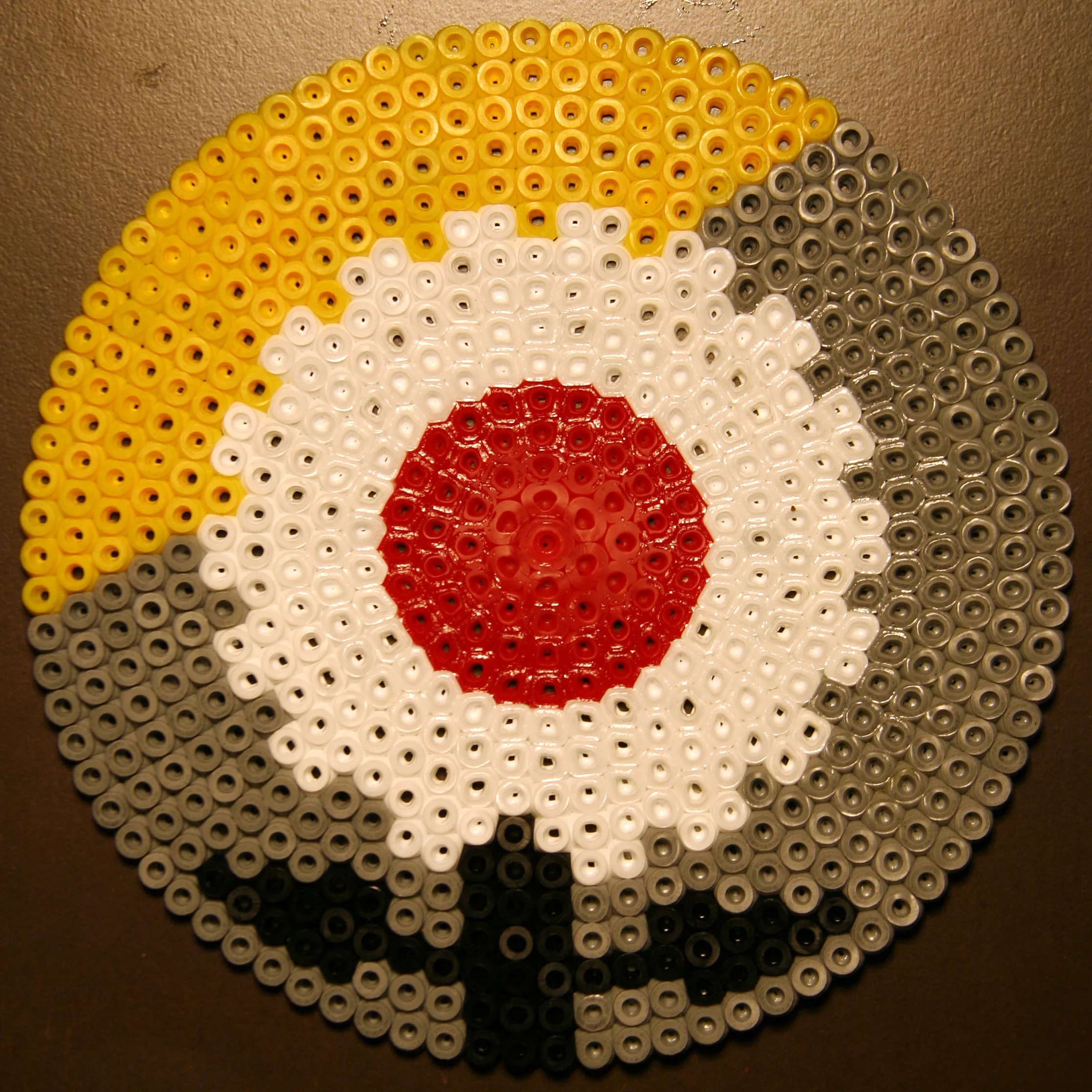
Why a photo is harder than a sprite
A pixel sprite is already a small grid of flat, hand-placed colors, so converting it to beads is close to a one-to-one copy. A photograph is the opposite. It is millions of smooth, blended pixels with soft gradients, lighting, and fine texture, none of which has any idea it is about to become a coarse grid of plastic cylinders.
When you drop that detail onto a small bead grid, every gradient breaks into bands and every busy region becomes a confetti of one-bead color islands. The fix is to simplify before you bead, not after. Convert at full complexity and then clean up, and you fight hundreds of stray single beads; simplify the source and pick the right settings first, and most of that mess never appears. That decision is what separates a portrait that reads from a blob that does not.
This post is the photo-specific companion to the rest of the perler cluster. If your source is a clean game sprite, read Pixel Art to Perler Pattern instead, where the goal is to keep every pixel untouched. Here, the whole job is deciding what detail to throw away.
Pick a photo that survives the grid
The conversion is only as good as the source. Before you upload anything, judge the photo against three things, because they decide whether the finished panel will be recognizable.
- One strong subject. A single face, one pet, one clear shape. A group shot or a wide scene packs too much into too few beads and reads as noise.
- A clean, simple background. A busy background steals colors and beads from the subject. A plain wall, sky, or solid backdrop is ideal, and you can drop a messy background to negative space later.
- Strong contrast and even light. The subject should stand clearly apart from the background in brightness, not just color. Flat, even lighting beats harsh shadows that swallow features; deep shadow detail disappears once colors are reduced.
Then crop tight before you convert. The bead grid spends its resolution on whatever is in frame, so cropping a portrait to the head and shoulders puts every bead where it counts. A pet's face fills the frame better than the whole dog standing in a yard. Less background means fewer stray colors to clean up.
A blunt test: shrink the photo on your screen until it is about an inch tall and squint. If you can still tell what it is, it will bead. If it turns to mush at thumbnail size, no converter will rescue it — a small bead grid is just a thumbnail made of plastic.
Size the pattern so a face stays recognizable
Output size in beads is the lever that decides whether features survive. Too few beads across and the eyes, nose, and mouth merge into a smudge; the face stops being that person and becomes a generic oval. Detail needs grid cells to live in.
For a portrait, treat 40 to 50 beads across the face as the floor — the point where a face just starts to read. That fits a single standard 29-by-29 pegboard only if the face fills the whole board. The moment you want eyes with catchlights, a defined nose, and a real mouth, you want more like 58 to 80 beads across — a multi-board project. Pets and landscapes are more forgiving, because we are not wired to spot a wrong cat eye the way we spot a wrong human one.
| Subject | Beads across | Boards (midi, square) | Reads as |
|---|---|---|---|
| Face, minimum | 40-50 | One 29×29 board, face fills it | Recognizable, but soft on detail |
| Portrait with detail | 58-80 | 4 boards (snap to 58×58) | Eyes, nose, mouth resolve |
| Pet or simple subject | 40-58 | 1 to 4 boards | Clear at smaller sizes than a face |
| Landscape | 50-80 wide | Multi-board, wider than tall | Shapes and color zones, not fine texture |
Two practical limits keep this honest. A solid 58-by-58 panel is 3,364 beads, comfortably inside Beadify's free cap of 5,000 per pattern; and a face that leaves its background empty fits with room to spare, because empty pegs cost no beads. The standard Perler square pegboard is 29 pegs by 29, about 5.7 inches across, and boards interlock, so plan whole-board widths — 29, 58 — not a size that straddles a seam. Pick the bead-size preset first too: Perler / Hama Midi 5mm for a bigger panel, Mini Fuse Beads 2.6mm to pack the same count into a smaller footprint.
Choose the preset: Cartoon for clean, Photo for shading
Beadify gives you two presets that matter here, and for fuse beads the choice changes how much cleanup you do.
- Cartoon / Illustration posterizes the image into flat, faithful blocks of color with no dithering. For most perler portraits this is the one to try first. It collapses smooth gradients into clean color zones, which is exactly what a pegboard wants and roughly what the beads will look like fused anyway.
- Photo / Portrait keeps smoother tonal transitions and applies dithering to fake intermediate shades. It can give a more realistic, shaded look on a large grid, but it leans on more colors and more speckle, so you trade realism for a harder build.
Whichever you start with, turn dithering off for fuse beads. Dithering scatters two colors in a checker pattern to imply a third. That reads fine in a printed photo where the dots are tiny, and terrible in beads, where every speckle is a physical bead you place and a color you have to keep in stock. With dither off you get solid blocks, which is what builds cleanly and what survives the iron.
A useful loop: run Cartoon with dither off, check the preview, and if the face looks too flat, nudge toward Photo or raise the color count a little; if it looks busy and speckled, pull colors down. You are steering toward flat, legible color zones, not photographic accuracy.
Reduce colors to the beads you own
Color count drives both clarity and buildability. A photo wants hundreds of colors; a fuse-bead stash is far smaller. Most builders work comfortably in 8 to 16 colors, and that range is a feature, not a compromise — fewer colors read as bolder and more like deliberate bead art than a muddy photocopy.
Beadify's free plan caps a pattern at 20 colors, which lands exactly in this sweet spot. Set the cap before you fine-tune, then look at where the reducer spent the colors. For a face, you want enough skin tones to model the cheeks and a couple of shadow values; a single flat skin color looks like a mask. Spend your color budget on the subject, not the background.
One honest limitation, and it is deliberate: Beadify has no Perler or Hama color catalog, so it will not hand you brand color codes. Brand matching to real bead SKUs is a seed-bead feature — Miyuki, Toho, and Preciosa, on the paid plans — because those product lines are catalogued and stable. The fuse-bead world has no reliable cross-brand color standard, so hold each palette swatch next to your bins and pick the closest bead by eye, rather than chasing a code like "P18" that may not mean the same thing across brands.
Clean it up in the editor
Even a well-prepped photo lands with a few stray beads — a lone bright pixel in a cheek, a ragged edge, a speckle the reducer left behind. This is where the editor earns its keep.
- Replace swaps every bead of one color for another across the whole chart at once. Use it to merge a near-duplicate color into its neighbor and drop your total color count.
- Fill floods a connected region with one color — the fast way to make a background a single flat color, or to even out a blotchy patch of sky.
- Draw and erase fix individual cells. Knock out the one wrong bead in an eye, redraw a clean outline, or sharpen a jaw that came out jagged.
To drop the background entirely, erase those cells to empty. On a pegboard, an empty cell is negative space: you leave that peg bare, the same way a loom leaves the warp threads unbeaded where there is no bead. There is no fused plastic where there are no beads, so a portrait with the background erased fuses into its own silhouette — a head and shoulders, not a filled square. Plan for that irregular outline, and handle the loose edge cells gently when you peel the panel off the board. Removing the background also strips out most of the colors you would otherwise manage, so it is often the single biggest cleanup win.
Assemble a multi-board perler bead pattern without a seam line
Any portrait worth doing in detail outgrows one board, and the moment you snap pegboards together you hit a specific problem: a faint line can appear across the finished panel right where two boards met. There are two ways through it.
The simple route is the standard fuse: design at a whole-board width like 58, snap four interlocking boards into a 58-by-58 square, place the image, and iron section by section with the boards still under the beads. It works, but the seam can show.
The cleaner route for big pieces is the tape method, which Perler documents on its own site. The idea is to take the pegboards out of the melting step, so the seam between boards never gets a chance to form. In short:
- Build the full design on the snapped-together boards, sitting on a piece of heavy cardboard.
- Lay 2-inch masking tape (blue painter's tape works) across the top of the beads, overlapping each strip about a quarter inch, until the whole face is covered. Press it down well — rolling the tape roll over it works — so every bead sticks. Trim the tape to about half an inch outside the design.
- Sandwich the design with a second piece of cardboard and flip the whole stack so the tape side is down. Lift the pegboards away; the tape holds every bead in place.
- Iron the now-exposed back in sections, about 10 to 20 seconds each, until the beads just fuse. Do not iron the taped side. Weight it flat and let it cool.
- Flip it back, peel the tape off gently, and fuse the front the same way.
One caveat straight from Perler: the tape method is not suitable for mini beads. For a detailed portrait, that pushes you toward midi 5 mm beads and a physically larger panel — a tradeoff worth knowing before you commit a stash to a mini-bead face.
How Beadify helps
Beadify does the slow part of turning a photo into a perler bead pattern: it reduces the image to a clean square-grid chart in a palette you can actually buy, then exports a numbered chart and a per-color shopping list you read straight onto the pegboard. Pick the Cartoon or Photo preset, turn dithering off, choose the loom grid and a fuse-bead size preset, and the chart you get is a pegboard map. The free plan exports the full PDF, handles up to 5,000 beads and 20 colors per pattern, saves up to five patterns, and needs no card. See the perler workflow on the homepage, open the pattern workspace, or just turn your first photo into a pattern.
Related reading
This is the photo-focused entry in the perler cluster. These three cover the steps on either side of it:
- Free Perler Bead Pattern Maker: Image to Pegboard Chart is the broad guide to fuse beads, sizes, brand compatibility, and the standard ironing method.
- Pixel Art to Perler Pattern: Keep Every Pixel handles the opposite case, where the source is a clean sprite and the goal is to keep every pixel exact.
- How to Turn Any Photo into a Bead Pattern covers the same photo-to-chart idea for seed-bead weaving, where bead shape and stitch geometry change the math.
The trick with photos is to stop expecting the beads to be the camera. Pick a strong source, give a face enough beads to keep its features, cut the palette to your stash, and clean the strays in the editor — and the photo becomes a panel you can build.
Turn a photo into a perler bead pattern with a numbered chart and per-color counts, free.
Try it free →