Pixel Art to Perler Pattern: Keep Every Pixel Exactly Where You Drew It
When you convert pixel art to a perler pattern, the goal is simple: every source pixel should become exactly one bead, with the colors and edges untouched. Most generic image-to-bead converters fail at this because they resample the sprite and blur it. This guide shows why that happens, how to import a sprite one pixel to one bead instead, and how to size the result to a real pegboard.
Why naive resizing wrecks a sprite
Pixel art is already a grid of discrete, hand-placed pixels. A 16-by-16 sprite is 256 deliberate color decisions, each one square, each one a single flat value. A fuse-bead pegboard is also a grid of discrete cells. The two are the same kind of object, so converting between them should be a one-to-one copy. The trouble starts the moment an image is resized on the way in.
Image editors resize with interpolation. The default almost everywhere is bilinear or bicubic: to compute a new pixel, the algorithm averages several source pixels around it. That averaging is exactly right for a photo, where smooth gradients should stay smooth. It is destructive for pixel art, because it invents in-between colors that the artist never drew and softens the hard edges that define the style. A crisp black outline turns into a gray fringe. A flat fill picks up a faint gradient. Scale the sprite up or down by a non-integer factor and the damage compounds, because the new grid no longer lines up with the old one.
There is a second failure mode that hits bead converters specifically: off-grid sampling. If a tool decides your sprite should become a 41-bead-wide chart but the art is 16 pixels wide, it has to stretch 16 across 41. Each bead cell now straddles parts of two or three original pixels, so the converter reads a mixed color for cells that should have been a single clean value. The output looks mushy and gains stray colors along every edge. The fix is not a better blur. The fix is to stop resizing.
The right scaling method for pixel art is nearest-neighbor: instead of averaging, it copies the single closest source pixel, so a 1-pixel block scaled by a whole number becomes a clean block of the same color with no new tones. Anything that blends — bilinear, bicubic, Lanczos — is the wrong tool for a sprite.
The pixel-exact path to a perler pattern: 1 pixel = 1 bead
The clean way to turn pixel art into a perler pattern is to treat the sprite's own pixels as the chart. A 32-by-32 sprite becomes a 32-by-32 bead chart. No stretching, no averaging, no guessing a target size. Each pixel maps to one peg, and the color is copied straight across.
That only works if the tool can find the pixel grid first. Sprites you download are often saved larger than their native resolution — a 16-by-16 character exported at 256 by 256, so every "pixel" is really a 16-by-16 block. Beadify detects this by measuring how the image repeats. It runs an autocorrelation pass over the rows and the columns, looking for the spacing at which the picture lines up with a shifted copy of itself. For grid-aligned pixel art that spacing is sharp and obvious; for a photo it is noisy and weak. From the detected period the tool recovers the true resolution, then collapses each block back to a single pixel.
Once the grid is found, Beadify offers exact reproduction. Turn it on and the importer samples the source grid one to one, locks the column and row counts to the detected resolution so you cannot accidentally stretch it, and copies each cell's color with no dither and no blur. What was 16 by 16 in your editor is 16 by 16 in beads, pixel for pixel. This is the behavior the rest of this guide assumes.
The Pixel Art preset, and when you still need it
Exact import is the right call when the source is genuinely grid-aligned pixel art. But plenty of "pixel-ish" images are not clean sprites: AI-upscaled fan art, screenshots with scanlines or compression noise, or hand-drawn art in a pixel style that was never snapped to a grid. For those, exact detection has nothing crisp to lock onto, and you fall back to converting like any other image — but with the right preset.
Beadify's Pixel Art / Sprite preset is tuned for this. It keeps a tight outline, sets the dither to none so solid regions stay solid, and avoids the saturation and contrast boost that the photo pipeline applies. Dithering is the enemy here: it scatters two colors in a checker to fake a third, which looks fine in a printed photo and terrible in beads, where every speckle is a physical bead you have to place. With dither off you get flat blocks of color, which is what reads cleanly on a pegboard.
A simple rule: if Beadify detects a pixel grid, take the exact import. If it does not, switch to the Pixel Art preset and pick a column count that keeps the shapes legible. Either way you steer toward flat, hard-edged color.
Map the chart to the pegboard with the loom grid
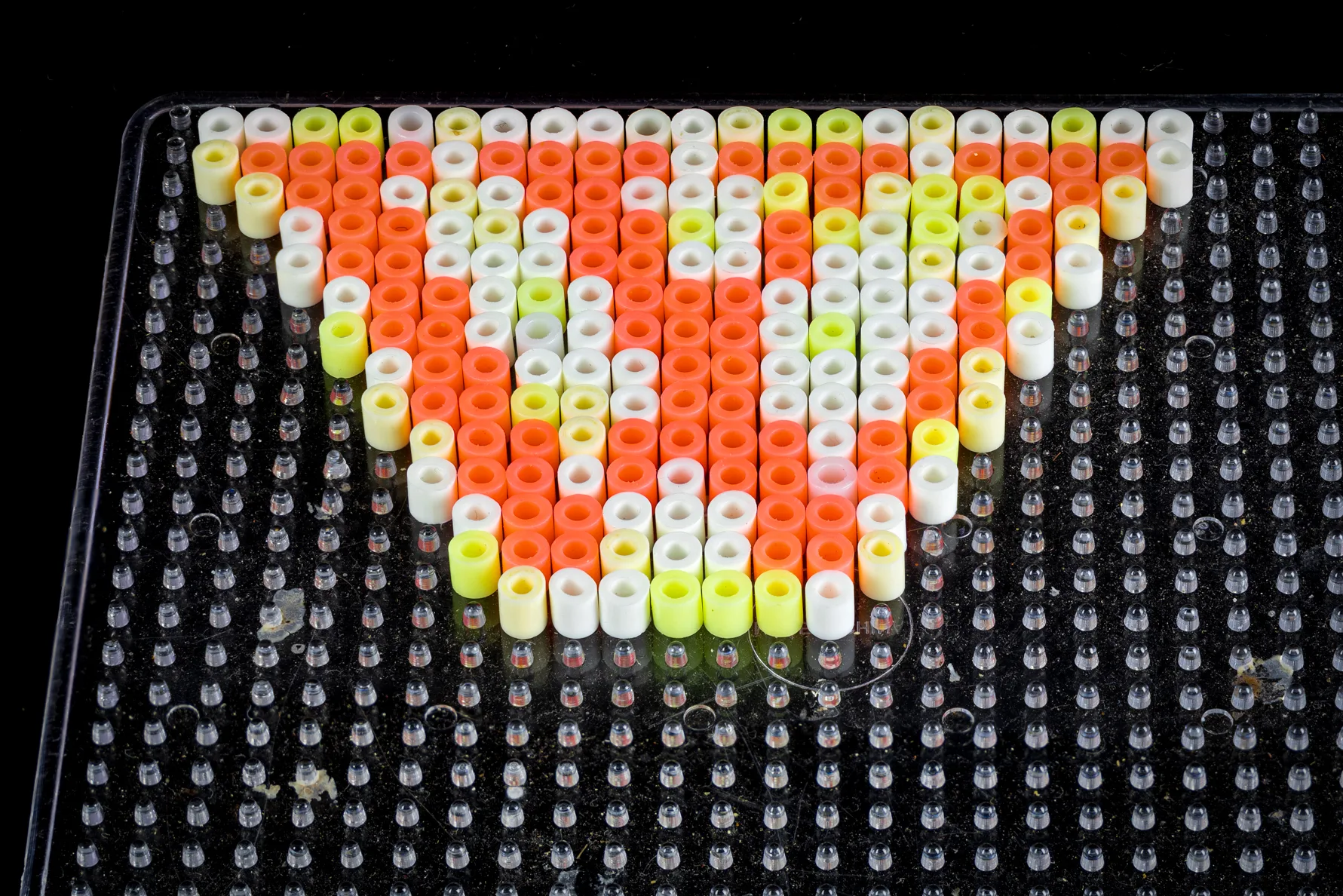
A fuse-bead pegboard is a square lattice. Every peg sits directly above the one below it, with no horizontal shift between rows, and every cell is the same square shape. That is the same geometry as graph paper or a cross-stitch grid.
In Beadify you get that geometry by choosing the loom stitch. Loom mode produces a straight square grid with no row offset, so one chart cell equals one peg. Do not pick peyote or brick for fuse work. Those bead-weaving stitches offset every other row by half a bead, so a straight sprite grid would no longer line up cell-for-cell, and your nice square pixels would stagger. Seed beads also are not square — a size 11/0 Miyuki Delica is wider than it is tall, roughly 1.6 mm by 1.3 mm — which is why seed-bead charts need an aspect-ratio correction that fuse beads simply do not. Perler and Hama beads are effectively square on a square grid, so a pixel-exact chart is already a pegboard map.
You read it the same way you would read any bead chart: left to right, top to bottom, one symbol per bead. The difference with a sprite is that you already know it is faithful, because nothing was resampled between your drawing and the grid in front of you.
Sizing: sprite resolution is your bead count
Because the import is one to one, the math is refreshingly direct. The sprite's resolution is the bead count. A 16-by-16 sprite is 16 beads on each side; a 32-by-32 is 32. You are not choosing a size so much as reading it off the art. What you do choose is whether that bead count fits your boards, and which bead diameter to build it in.
The standard Perler square board is 29 pegs by 29 pegs, about 5.7 inches across, and the boards interlock so you can snap several together for a larger panel. Match common sprite sizes to that:
| Sprite | Beads | Boards (midi, square) | Notes |
|---|---|---|---|
| 8 × 8 | 64 | Fits one board, tiny corner | NES-era tile, good for a keychain charm |
| 16 × 16 | 256 | Fits one 29×29 board | The sweet spot for retro character sprites |
| 32 × 32 | 1,024 | Needs 4 boards (snap to 58×58) | Larger SNES-style sprite, mini beads |
| 64 × 64 | 4,096 | Beyond 4 midi boards | Drop to mini 2.6mm, or split into panels |
Two levers keep a big sprite manageable. First, bead size: a 32-by-32 sprite in midi 5 mm beads is a roughly 6.5-inch panel that needs four boards, but the same 32-by-32 in mini 2.6 mm beads is about 3.3 inches and fits a single mini board. Mini packs the same bead count into a smaller footprint at the cost of fiddlier placement. Pick the size preset — Perler / Hama Midi 5mm or Mini Fuse Beads 2.6mm — before you export, so the shopping list totals match the beads you will actually buy.
Second, the bead budget. A solid 16-by-16 sprite is 256 beads and a solid 32-by-32 is 1,024, both comfortably inside Beadify's free cap of 5,000 beads per pattern. Most sprites use far fewer than their full grid because the background is empty.
That empty background is negative space. On a pegboard you just leave those pegs bare, exactly the way a loom leaves the warp threads unbeaded where there is no bead. There is no fused plastic where there are no beads, so a sprite with a transparent background fuses into its own silhouette — a standing character, not a filled square. Plan for an irregular outline and handle the loose edges gently when you peel the panel off the board.
Colors: match the palette to your stash
Pixel art tends to use a tight palette by design, which is good news for beads. A sprite drawn with 8 to 16 colors converts almost perfectly, because there is little to reduce. Beadify's free plan supports up to 20 colors per pattern, which covers the great majority of sprites without any palette squeezing at all.
When you export, the free PDF gives you a numbered chart plus a per-color shopping list with exact counts — how many red, how many black, how many of each. That list is the practical payoff. You pour out the right number of each color before you start, place beads straight from the printed grid, and check each color's running total against the list instead of counting squares off a screen.
One honest limitation: Beadify does not carry a Perler or Hama color catalog, so it will not hand you brand color codes. Brand matching to real bead SKUs is a seed-bead feature (Miyuki, Toho, Preciosa) on the paid plans, and it exists because those product lines are catalogued and stable. The fuse-bead world has no reliable cross-brand color standard to match against, so the sane approach is to match the pattern's swatches to the beads in your bins by eye. Hold a swatch next to your stash and pick the closest — it takes seconds and it is honest about what the beads actually are.
Copyright: build for yourself, not for sale
This is the part the tutorials skip, and it matters once you think about selling. A game character sprite — the famous plumber, the pink puffball, the green-hatted hero — is protected by copyright, and the character is usually a registered trademark on top of that. Converting one into a bead pattern does not change who owns it.
In practice, making a sprite of your favorite character for your own shelf is low-risk personal use, and the bead community does it constantly. The line is commercial: selling finished pieces or the pattern itself is infringement, and "I made it by hand" is not a defense. A marketplace listing can also be pulled by a rights holder's takedown.
If you want to sell, design from material you are allowed to use: original pixel art you drew yourself, art you have a license for, or public-domain imagery. That keeps the work yours and keeps the income clean. For personal gifts and your own wall, enjoy the sprite — just keep the commercial line in mind.
How Beadify helps
Beadify detects the pixel grid in your sprite and imports it one pixel to one bead, with no resampling, no blur, and no dither, then hands you a numbered square-grid chart and a per-color count. Choose the loom grid and a fuse-bead size preset and the chart you get is a pegboard map you can build straight from the page. The free plan exports the full PDF, handles up to 5,000 beads and 20 colors per pattern, saves up to five patterns, and needs no card. See the perler workflow on the homepage or turn your first sprite into a pattern.
Related reading
This is the sprite-focused companion to the perler cluster. These three go deeper on the surrounding steps:
- Free Perler Bead Pattern Maker: Image to Pegboard Chart is the broader guide to fuse beads, sizes, brand compatibility, and ironing.
- How to Turn Any Photo into a Bead Pattern covers the conversion when your source is a photo rather than a clean sprite.
- How to Read a Bead Chart explains grid orientation and color codes so a printed pattern never loses you.
Pixel art and fuse beads are made for each other because they share a grid. Keep the conversion one pixel to one bead, choose the bead size that fits your boards, and the sprite you drew is the sprite you build — no mush in between.
Turn a sprite into a perler pattern, one pixel to one bead, with a numbered chart and color counts — free.
Try it free →